
Local reviews are important.
93% of consumers use online reviews to impact their purchasing decisions suggested by a recent survey by Podium. Reviews remain very influential when it comes to making decisions for B2B and B2C; consumers read these reviews before they make their purchasing decisions whether that’s products or experiences. The study suggests that 68% of consumers are willing to pay up to 15% more for the same product or service if they are assured they will have a better experience.

How to Leave a Google Review:
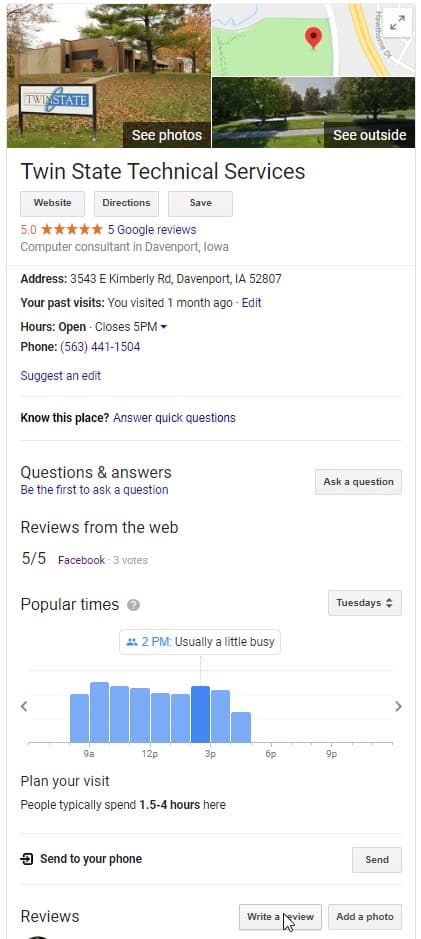
1. Search for the business you wish to review.

2. On the right-hand side, under the business’ profile click Write a review.
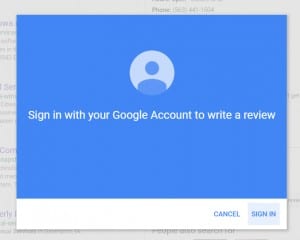
3. If you’re not already signed in, it’s going to prompt to sign in.
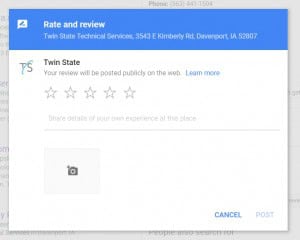
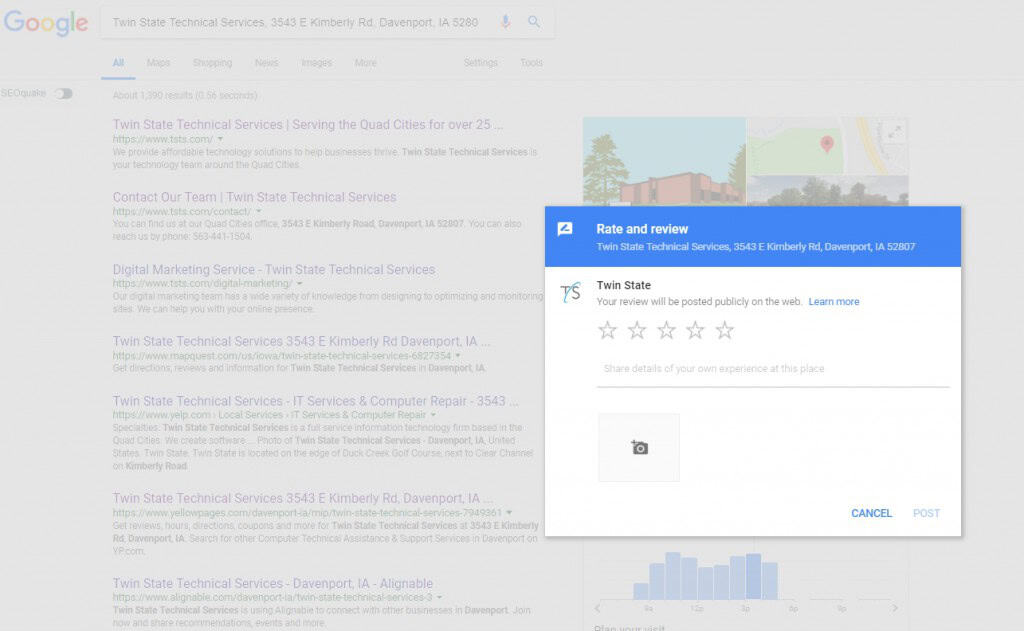
4. You will get the popup to be able to give a star rating, leave a comment about your experience, and add photos.
How to Create a Link for Customers to Write Reviews:
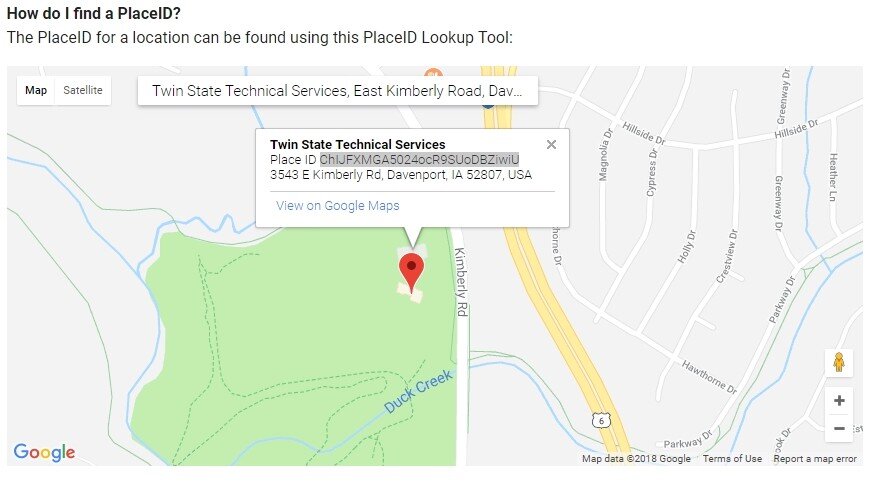
1. Go to the PlaceID Lookup Tool
2. Enter your business name in the “Enter a location” field at the top of the map.
3. Click your business name in the list that appears.
4. Your Place ID will appear on the map, beneath your business name.
5. Add your Place ID to the following URL to create your link:
https://search.google.com/local/writereview?placeid=<place_id>
6. Using the example above, the URL for Twin State Technical Services with our Place ID added would be:
https://search.google.com/local/writereview?placeid=ChIJFXMGA5024ocR9SUoDBZiwiU
Do you want to shorten this URL to make it more appealing?
1. Visit the Google URL shortener site at goo.gl.
2. If you aren’t signed in, click the Sign in button in the top right corner.
3. Write or paste your URL into the Paste your long URL here box.
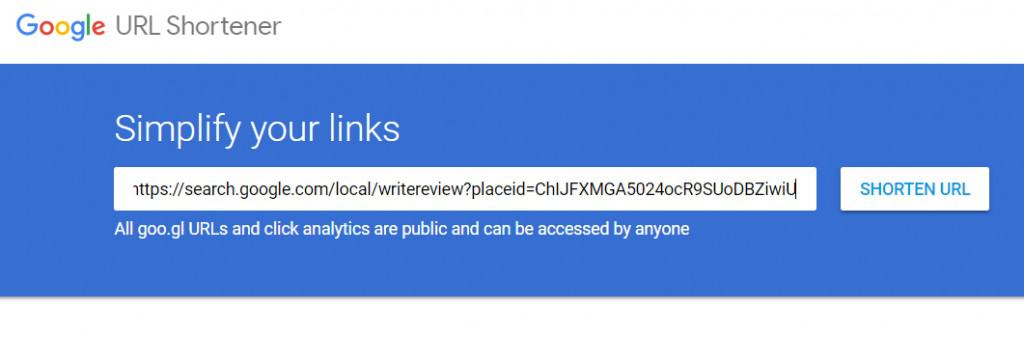
4. Click Shorten URL.
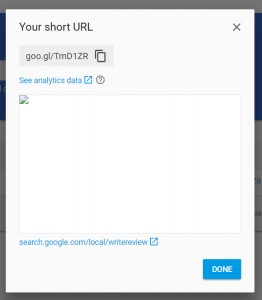
Here is our shorten code from above: goo.gl/TmD1ZR
Do you want to track your new shortened code?
Tracking for all goo.gl short links are publicly visible to all users.
1. Add .info after your new URL
goo.gl/TmD1ZR.info
When customers click your link, a window will open in their browser. They’ll be able to rate your business and leave a review.
For more information, visit:
https://support.google.com/business/answer/7035772?hl=en
https://support.google.com/faqs/answer/190768
http://learn.podium.com/rs/841-BRM-380/images/2017-SOOR-Infographic.jpg


